2016/03/12

Feature Update!

Hi!

It's time for another update on how the development is going. We've, since the last update, added:


Objects that can be picked up and thrown, and if they are thrown with enough force, they break/explode. These are not using UE4's built in fracture mesh. They spawn gibs and particle meshes on impact, destroy themselves and of course, make noise, too. 

We can't show you yet, but the monster can now react to noises. It's possible to distract him with throwing an object somewhere far, and if the monster is close enough to hear it (or it is loud enough), he will inspect the sound's location.

---


The doors also got an upgrade. The door system itself changed, now every door uses a certain color, and the corresponding colored card opens the door. They also got this flashy sign on the buttons that shows if they are locked or not.

---


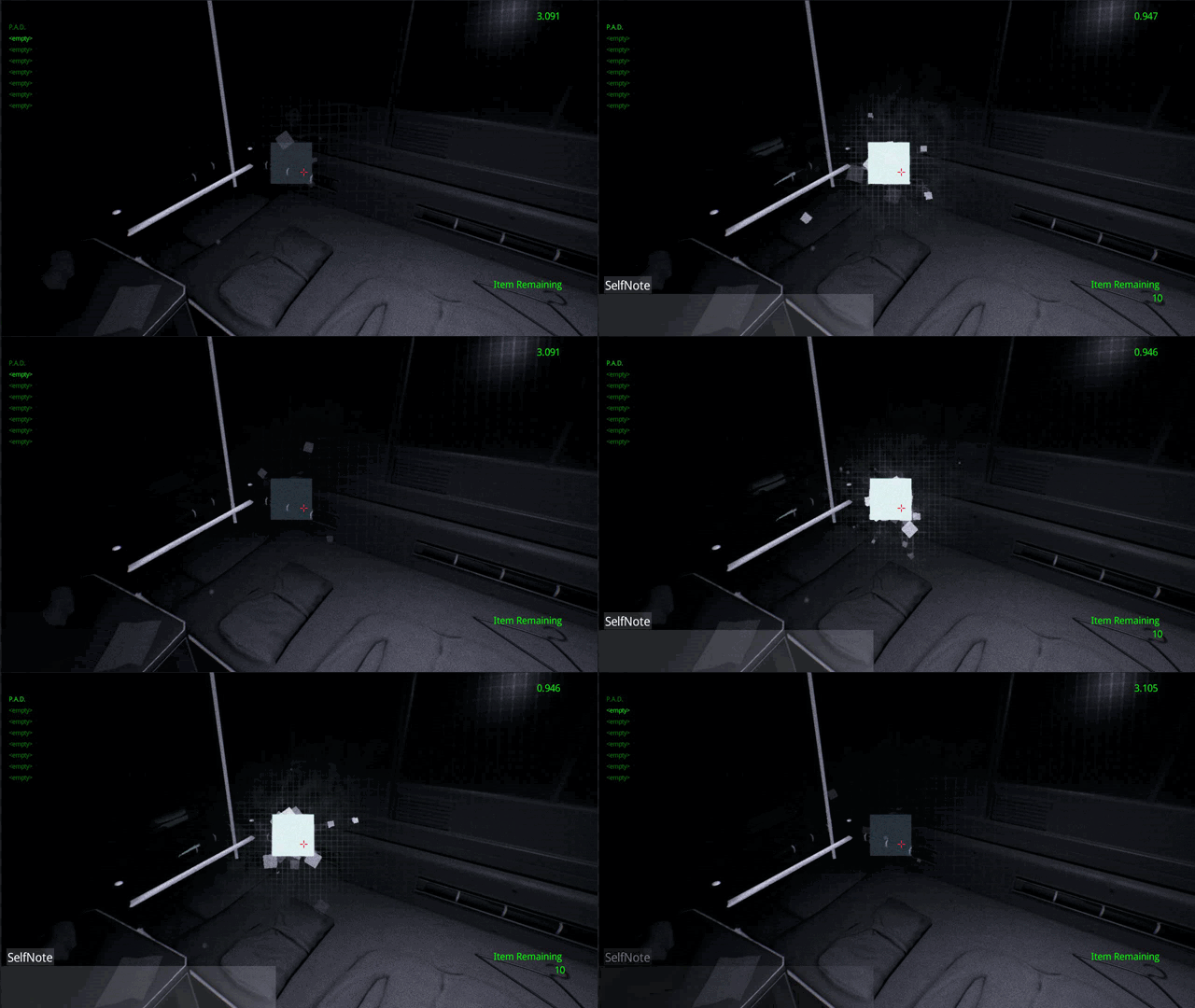
We've added a note system to the game. Every in-game character has a Personal Assistant Device (P.A.D) that they use to take notes with. The P.A.D assigns these notes to the locations they were recorded at inside the ship. If you find someone's P.A.D, their notes will become visible and readable. 


Like this poor fella's.


And this is how the note looks if you activate/deactivate the found P.A.D.

---


We've added visible points to the spine of the monster, so he can be seen from farther away.

---


One of the biggest features we've added is the fire detection system in the ship. If there is a fire, the sprinklers will activate (if the water system is active, of course), and put it out over time. The fire can also kill the player if he stays in it for long enough. Also, if the player stands under the sprinkler, he gets wet and the camera also gets an effect that makes it hard to see. It fades over time, but while he's wet, electric devices will be dangerous to him.

---


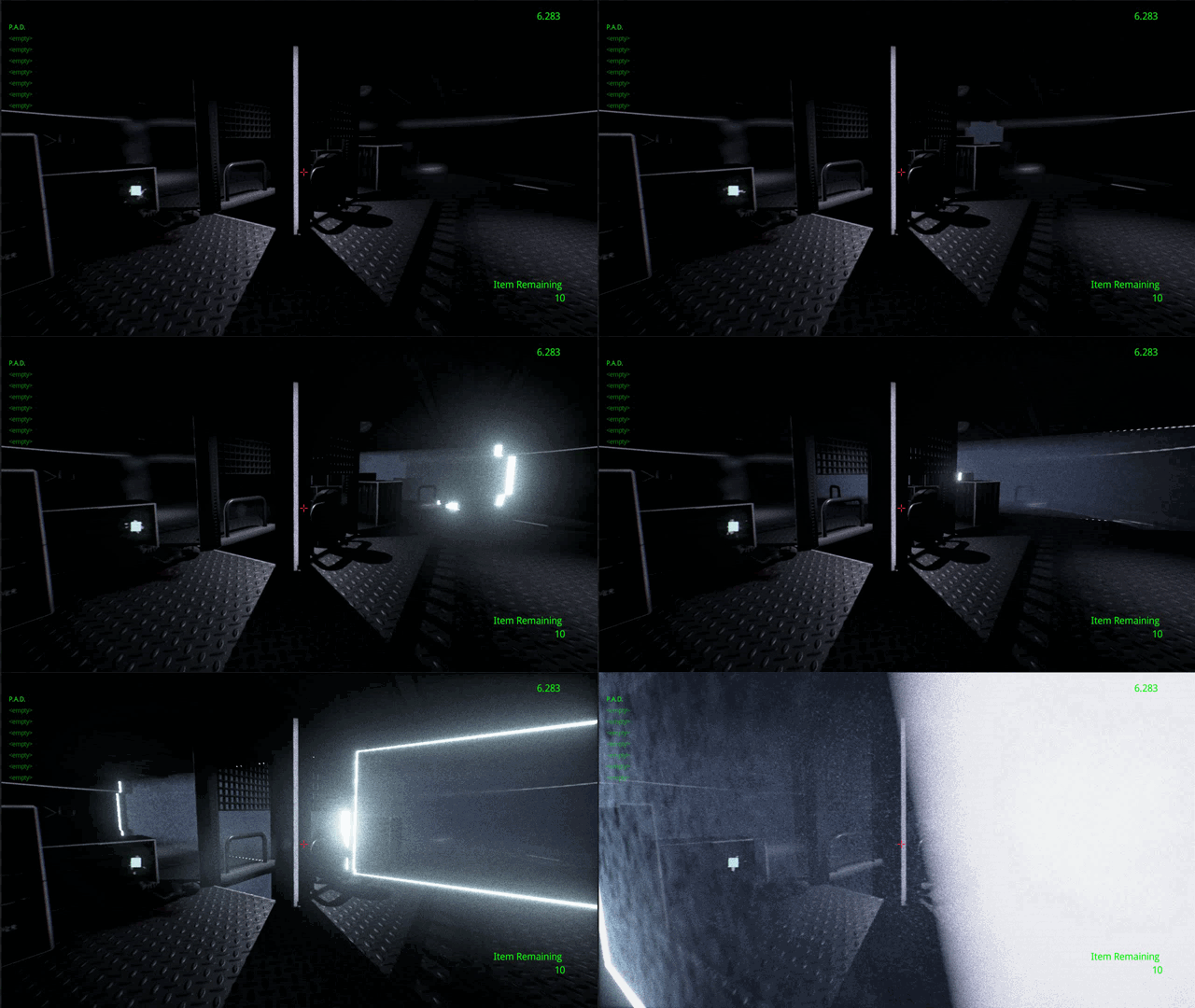
The last thing is the way the day ends. After a set amount of time, time resets, and we've added an effect that sweeps through the ship, representing the time loop starting everything over.


Also, related to this, we've made a clock that shows the current time. This will be the clock that wakes the player every day, and he can also use it to determine how much time he has left of that day.

We're still working on the interface, there are a lot of placeholders and debug stuff there, please excuse the messiness.


In other news, we're preparing for our Steam Greenlight campaign, and trying to find legal ways to release the game (we're in Hungary... it's not easy)

This is all for today, see you next time!

2016/03/02

Project Blind story details!

Hi! It's Geril.


We're on Steam Concepts! (And soon Greenlight) Check it out!

***

We haven't really talked about the story of Project Blind, because obviously, we don't want to ruin anything. But I'll try my best to give you an overview.

The game is set on a transport spaceship that carries supplies from and to a city-sized science base. In the game, there are also four people being transported on it, one of them being the player, an ex-engineer who had a severe accident and lost his vision, and therefore his job. He is in a coma after the surgery that replaced his eyes with a machine.

The other three people are a newly retired doctor, a scammer lawyer and an insane designer. All three of them leave messages in their portable devices, which the player can check to find out more about them.

The spaceship has a crew of five people who keep the ship in check, while the ship carries them through space on a predefined path.

Among the cargo, there is a military experiment hidden, the result of an ongoing gene-modifying project. This creature wakes up from cryogenic sleep for unknown reasons, and breaks free.

The player wakes up after this happens. Most of his fellow passengers are dead, and he can only find out what happened by discovering clues and reading writings on the wall. The only other survivor has locked himself in the surveillance room, watching the player through the cameras, and he is the one leaving the messages.

The loose monster isn't the only thing standing in the way of exploring and fixing the ship. About eight minutes after the player wakes up, the ship enters an anomaly that resets time and the player wakes up again. Time goes back by about one and a half days, but the player always wakes up in the last minutes. By that time, the other survivor has changed what he could in the ship based on his own experience and the player's actions, to help the player progress, and locked himself in. For example, if the player rearranges a room to get to a valve to turn off the heating in the room, then the next day, the other survivor will have already exposed the valve for him. Of course, he won't repeat everything the player does, but he tries his best to help. This is why he writes the notes on the wall, although those can be misleading sometimes.

Ultimately, it is up to the player how many times the day repeats, and what the ship's fate will be.


2016/02/17

Features in Project Blind so far!

Hi! In this post, I'd like to show you some of the features we've added to the game this month. (Because we realized that the video showed nothing) So, let's go!

First, we have: automatic doors that open when you walk into their range.


The same doors can be closed/opened with access cards, here is one such card:


Using it, you can lock the doors. There are three security levels (three colored cards), each color adds a new level of security to the door. This helps keep the monster out.


We have an inventory system with 8 slots (controlled via the mouse wheel), with which you can pick up, use and drop items. You can even use items with other objects, like putting duct tape on something!


For the items, we have a fully functional vending machine. As you can see, all of the usable items are able to display their names and two info sections on the HUD.


We have two view modes in the game, one lets you see your near surroundings in black and white, the other lets you see electricity, other types of connections, and you can see much farther with it, although in significantly worse quality.


We have a power supply system, any item has the ability to run on electricity, there are power supplies that can be chained together, and switches to trigger each individual item, or multiple items at the same time. With these, we can build a full system, perfect for puzzles. Here you can see power cores that can be inserted into the sockets, which provide power for the circuits. There are other items that can be picked up and thrown as well.


The latest addition is the ability to climb into air vents. This has no animation or transition yet, so it looks weird, but it is also fully functional.


We'll try to update more frequently, as we're moving faster and faster in development. See you next time!

2016/02/12

Pic Update!

We're still working on Project Blind, and we've spiced up the graphics a lot. Have a look:

2016/01/31

Update 2016

Happy New Year!
(it's a little late, but it's still 2016, so.. we're still in time?..)

We've been silent for more than a month, and it's not because we abandoned the project or this blog. We're in a situation that.. wouldn't allow us for continuous and uninterrupted development on Project OLP. The fact is, we're not making any money with OLP, and with learning more about the whole development process better, we've realized that it's not going to be completed any time soon, especially not with only two of us working. ...This sounds like we're not continuing, but it is not the case. OLP is still in development.

In the meantime, we've come up with a game idea that doesn't require years to develop. We've gained a lot of experience in the past years with our hobby (developing), and we'd like to see if we could do this for a living. So, for the last month, we've been working all day, all night, continuously, developing that game idea, and we took it really far (of course, compared to the time, experience level and... we're still just two people). We'll reveal some of the info about it now.


As you can see, it is a first-person game, still using Unreal 4. The genre could be described as.. first-person horror adventure (the point-and-click kind)..? (Still not good at defining things)
You are someone who's lost his eyesight and now sees through an implanted machine. You wake up in a spaceship, trapped inside. You have to figure out how to solve the problems that come up along your way. But here's the catch:
When you die, you go back to the beginning of the day (think Groundhog day), but you're not alone. You'll remember the puzzles you need to solve, but things change, some events play out differently. You'll have to find the right chain of events to get to the end of the game.

This game is also part of the OL universe, although is a lot more early in the timeline than the other two.

A little more about the development process itself: I (Lussy) am making all the blueprints for the project (it is made with UE4 Blueprints only), and the technology itself is coming along nicely, but as Geril is working on all the assets almost alone (I help occasionally), the art part of the game is a lot less developed than everything else. This is why the game looks barren right now.

2015/12/19

Happy Holidays!

Hi!

This time we're wishing you happy holidays a little in advance. We've realized that our time is a lot better spent working on the actual game at this point, rather than on events and such. If we do end up creating something more holiday-related, we'll post later, but for now, enjoy the morph target and lip-sync test video of Sal (we didn't have any song ideas for Beat yet).


We have separated the detailed facial animation (rendered in Blender's Cycles render), and the full body animation. The full body one is less detailed, it mostly just uses major keyframes, jumping from one major pose to the other. This is only to see what his movement style would be like.

All of this was made in about 3 days (and the face took another 3 days to render....), and it helped us a lot in adjusting morph targets, and getting a general idea of Sal's style.

Speaking of animations...
Sketchfab finally added morph target support (even for stupid ones like ours that are bone-based)! We tried uploading Beat with a bunch of her animations, to check it out:

You can see the list of animations by clicking on the button next to the seeker bar.Our only remaining issue is not being able to use Beat's eyes (which are texture based), so she just stares into nothingness.

We hope you still like it!

2015/11/17

Tutorial: Baking normal (and other) maps in Blender


It's Geril. Hi, all!

As I looked back on our previous posts, I realized I promised to make more tutorials about UDK and game development in general. The reason why we didn't make any is because it's hard to teach what we are still learning. But I'd like to share something that I think not many people know.

Blender3D can bake many kinds of textures, so we don't need ZBrush, 3D Coat or Blacksmith to create materials (even tileable ones). But as Blender is a free software, we have to work twice as hard.

I'm trying to make this tutorial as in-depth and easy to understand as possible, because I tend to omit important parts. If I'm wrong about something, please tell me in the comments, you know that I'm still learning, too.


So, in this tutorial, we're going to show you how we create tileable materials; in this case, a cobblestone surface. This is the result, rendered in Unreal 4:


This tutorial is only for the normal, displacement and ambient occlusion maps. In theory, anything can be a color map, we're using one that is a general stone texture we use for many other things.

---


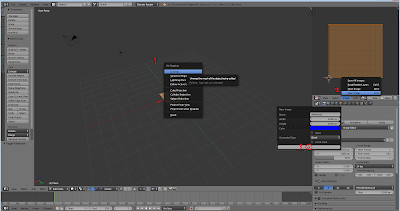
First, launch Blender (we're using 2.76 right now) and delete the starting box. Then add a Plane mesh using the Add menu [SHIFT + A] - this is going to be the surface to which we are projecting our texture. We're using the upper right area of the editor as a UV/Image editor, of course you can use any other area, too.


Press [TAB] to go into the plane's mesh edit mode that has all of the vertexes selected by default. Press [U] and select Unwrap from the menu - you just created a UV map for the plane. You can see it in the UV/Image editor area. This is where your texture will appear after baking.

In that area, create a new image in the image menu. Choose the right resolution for your texture, based on how important it is going to be in the game. We use 2048x2048. The color and name parameters are not important.


Exit the plane's edit mode [TAB], and add [SHIFT + A] an ico sphere (this will be the first stone). Push [G] and then [Z] to move it along the Z axis above the plane. Push [S] to re-size the sphere, shrink it to the size of the stone you want, relative to the texture's size (the plane).


Using the [NUM 7] key, you can switch to a top-down view, and using [NUM 5], you can change the perspective to orthographic (this is very important if you want to be precise!). Go into the sphere's edit mode [TAB], make sure all the vertexes are selected (if not, use [CTRL + L]).You can randomize the sphere by clicking randomize on the left toolbar. You can adjust it further in that menu, but I find it easier to just repeatedly push the randomize button until I am happy with it.

Open the specials menu with [W]. You'll find a "Smooth" option, with that, you can smooth your randomized sphere so it looks more like a rock. Once again, you can adjust it in the left-side menu, or just keep smoothing it over and over. With this method, you can randomize rock easily. (I add the other rock this way, too) Move your rock to one of the corners, I moved mine to the lower right. To move the mesh on the grid, hold down the [CTRL] key, that way you can align it perfectly with the corner.


Duplicate the rock with [SHIFT + D], and put a duplicate in each of the corners using the grid. Create some new ico spheres, and make new rocks from them using the previous method. Select some rock with area selection [C] (if you didn't select all the vertexes of a mesh with [C], push [CTRL+L] to select the remaining vertexes on them as well), and arrange them as a group, re-size them [S], rotate them ([R] to rotate on the current view's axis, [R] again if you want to rotate them on all the axes).

Duplicate them, and to make it more random, set the pivot point to Individual Origins, so that when you rotate or re-size them, they will all rotate and re-size individually (not as a group). Just make it seem as random as possible, customize them, but it's important that, except for the rocks in the corners, no other rock should touch the plane's edges.
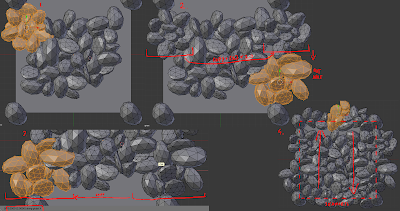

Pick a group of rocks, preferably one that is roughly as wide as it is long. Place it to one edge of the plane, so that it touches the rock in the corner and goes off the edge a bit. After that, duplicate it and place the duplicate on the opposite edge, using the grid. The easiest way is, say you want to move them from the left side edge to the right side one. You'd use grab [G], and to move them on the X axis, push [X] after [G]. Then just type in "-2". This moves the group two units on the X axis - right onto the other edge of the plane. For the top and bottom edges, of course you'd use [Y] instead of [X], for the Y axis. Do this for every edge, the point is that you should fill all the opposing edges with the same models, so that in the end it becomes tileable. It's a little tricky and tedious, and requires a lot of patience, but if I could do it, you can, too.
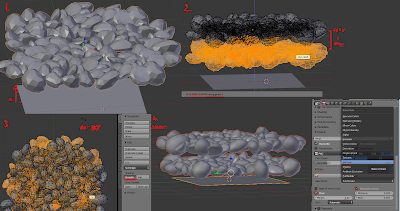

After our rocky surface is done, and there are no holes remaining, exit edit mode [TAB] and move it to about one unit above the plane. Then duplicate it, and move the duplicate a little closer to the plane (it still shouldn't touch it!). You should also rotate the duplicate 90 degrees ([R], [Z], 90 - this shortcut rotates it on the Z axis 90 degrees) Another important thing is to set the rocks' flat shading to smooth on the left side toolbar.

Select the two rock objects and the plane, in this order; the plane should be the last one [SHIFT + Right Mouse Button] for multiple selection). In the Properties section on the right side, choose the photo icon - that is the Render tab. There you can find the Bake sub window, where you can adjust the bake settings. First, check "Selected to Active" and "Clear". Margin can be left on 16, but I've had bad experiences with margins and tiling, so I recommend setting it to about 4. Set Bake mode to Normals. Now let's bake!
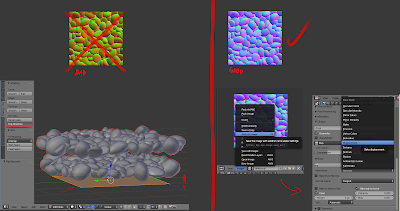

Well now, if the rendered image doesn't look healthily blue, but rather greenish or orange, our Plane's surface points in the wrong direction. In this case, go to the plane's edit mode, select all of the vertexes, and look for a "Flip Direction" button on the right-side toolbar. That should flip the plane's direction. Select the rocks and the plane in the right order, and try again. It should look normal now (pun intended). If you're happy with it, you can save it in the UV/Image editor window with Save as Image, I recommend saving as either PNG or TGA. When you've saved it, let's go back to baking - select Displacement in the Bake menu, and Bake again.
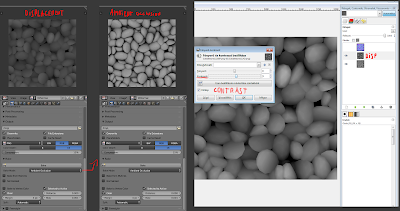

You shouldn't have trouble with the plane's direction again if the normal map came out good. Just bake it and save it next to the normal map you created. After that, repeat the process for Ambient Occlusion as well. You can do a little touch-up in Photoshop or GIMP, like filling in holes between rocks, but be careful, and always keep the original file. You can set the contrast higher on the Displacement map though, it makes the material look deeper. (Don't mind the Hungarian stuff on the pic)


Let's import the pictures into Unreal 4. Select one of the imported pics, and make a material based on it. Put the remaining pictures in that material as well. Use something appropriate as a color texture. Using the color texture as a DetailNormal map is also a good idea. 
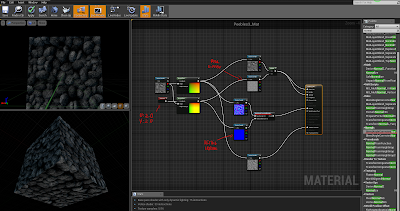

This is the last step, messing around with the material settings. It's a little hard to explain this in text, I hope that the picture is understandable. I'll try to write the instructions down as best as I can, though, because I'm not that lazy.

Connect the Displacement's red output to a BumpOffset node [B], then duplicate it and repeat. Create a TexCoord Node [U], and set it to U:2 and V:2. Connect this to the second BumpOffset Coords node's input. Connect the first BumpOffset node's output to the inputs of the textures we created. The second BumpOffset node (with the TexCoord) should be connected to the color texture, and its detailnormal map.

Multiply [M] the Displacement map with the rock texture. Connect this to Basic Color. If it's too dark, leave out the multiply node, but I think it improves the visuals quite a bit. Our normal map would be boring on its own, so you should also add the color map's detailnormal to it (multiplying its texture coord so it becomes more dense).

Create a BlendAngleCorrectedNormal node (that's a fancy way of saying MAKE A MORE DETAILED NORMAL) (okay.. there is a reason why it's called that, but.. let's just continue, okay?) Put this node next to the normal maps. Connect our baked Normal map to Base Normal, and the DetailNormal's to AdditionNormal. Connect this fancy node to the Normal input. And finally, connect the Ambient Occlusion's output to...... the Ambient Occlusion input. Yes, there is an easy step in this.

All that is left is to save the material and try it out. You should adjust the BumpOffset, Roughness and Specular, but I can't help you there, it all depends on what looks good with the color map and environment you are using.

---

This wraps up the tutorial. If you have any questions or requests, leave them in the comments below! I'll be happy to create a tutorial on anything, as long as I know what I'm doing.